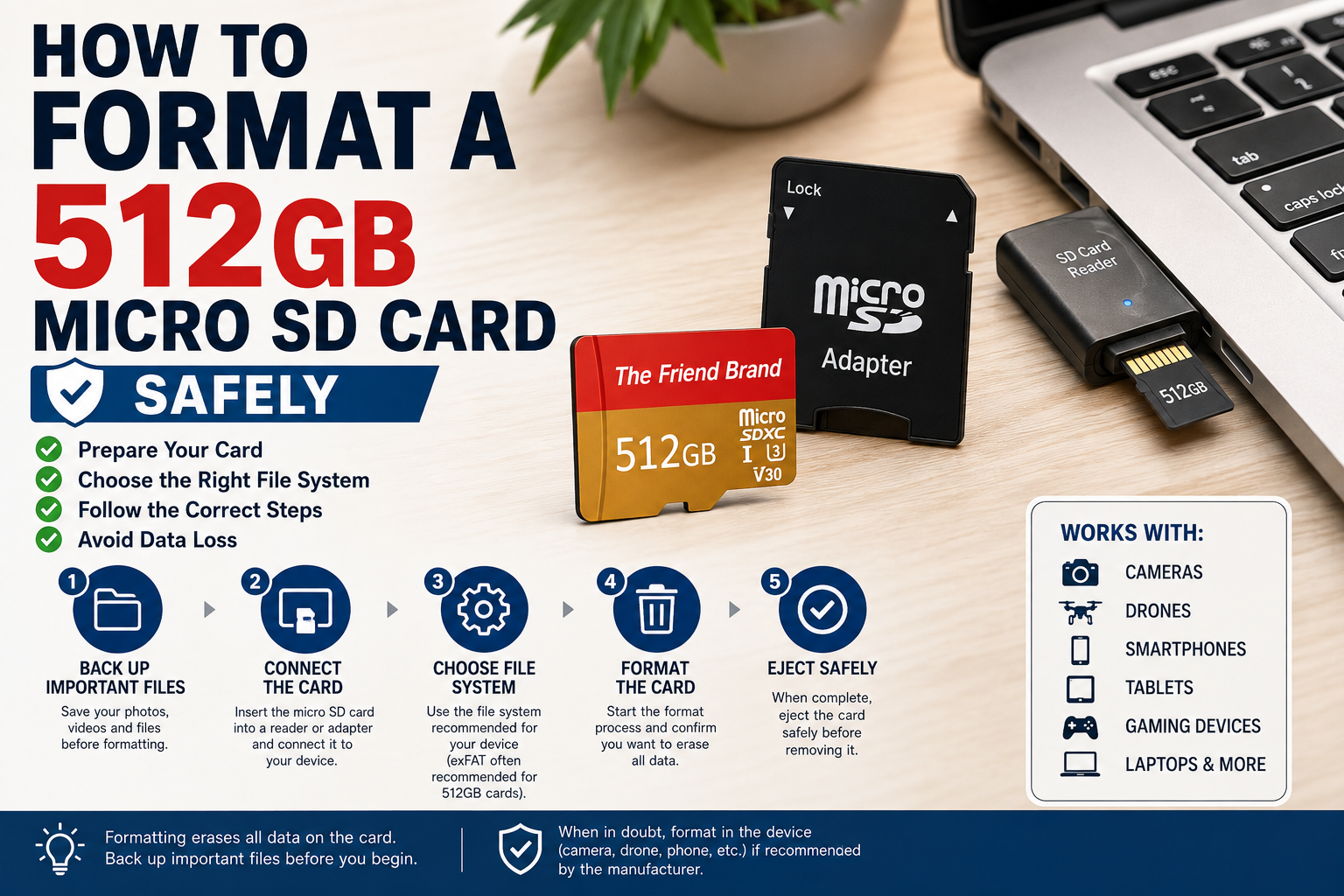
Formatting a 512GB micro SD card prepares it for use with a compatible camera, computer, smartphone, tablet, gaming device, or other electronic device. Before formatting, back up any files you want to keep because formatting erases the data on the card.
This guide explains how to format a 512GB micro SD card safely, including how to format it in Windows, how to choose the correct file system, whether to use Quick Format or Restore Device Defaults, and what to do if the card is not recognized. The correct settings can vary by device, so always check the requirements of the device that will use the card.
What Does Formatting a Micro SD Card Do?
Formatting prepares a storage device with a file system that allows a compatible device to organize, read, and write data.
Important: Formatting erases the data on the card. Back up any photos, videos, documents, or other files you want to keep before proceeding.
Before You Format a 512GB Micro SD Card
Before formatting, check the following:
- Back up any files you need to keep.
- Verify that your device supports a 512GB micro SD card.
- Check the device manufacturer’s recommended file system and formatting procedure.
- Make sure your computer or card reader properly recognizes the card.
- If using an SD adapter, make sure its physical lock switch is not in the locked position.
Device compatibility is particularly important. Not every device that accepts a micro SD card necessarily supports every capacity.
What File System Should You Use for a 512GB Micro SD Card?
The correct file system depends on the requirements of the device that will use the card.
High-capacity SDXC memory cards are commonly associated with the exFAT file system, but you should not change the file system simply because a card has a particular capacity. Follow the requirements of your specific host device.
If a camera, gaming system, or other device provides its own formatting function, its manufacturer may recommend formatting the card directly in that device.
How to Format a 512GB Micro SD Card
If your device manufacturer permits formatting the card using a Windows computer, the basic process is:
- Insert the micro SD card into a compatible card reader or SD adapter.
- Connect it to your Windows computer.
- Open File Explorer.
- Select This PC.
- Locate the micro SD card under your drives.
- Carefully verify that you have selected the correct drive.
- Right-click the card and choose Format.
- Select the file system required by the device that will use the card.
- Choose the appropriate formatting option.
- Click Start.
- Read the Windows warning confirming that formatting will erase the card.
- Proceed only after confirming that the correct drive is selected and your important files are backed up.
When formatting finishes, safely eject the card before removing it.
Quick Format or Full Format?
For most routine formatting in Windows, Quick Format is the faster option, while a full format performs additional checking and takes considerably longer. The right choice depends on why you are formatting the card and the requirements of the device that will use it.
A quick format prepares the file system without performing the same level of disk scanning performed by a full format, so it generally completes much faster.
Whether you should use quick format or another formatting procedure depends on why you are formatting the card and the recommendations for your device.
For a card that will be used in a camera, drone, gaming system, or another specialized device, follow that manufacturer’s instructions rather than assuming the Windows default is appropriate.
Should You Use “Restore Device Defaults” When Formatting a 512GB Micro SD Card?
Windows may display a Restore device defaults button in the Format window.
This restores the formatting selections Windows considers appropriate for that storage device. It does not guarantee that those settings are the settings required by every camera, phone, tablet, gaming system, or other device.
Check the requirements of the device that will actually use the card before formatting.
Formatting a Micro SD Card in a Camera
Many camera manufacturers recommend formatting memory cards using the camera’s own formatting function.
The exact menu varies by manufacturer and model, but it is often found under a setup or storage menu.
Before selecting Format:
- Confirm that all important photos and videos have been backed up.
- Make sure the battery has sufficient charge or connect the camera to an appropriate power source if recommended.
- Confirm that the camera supports the card’s capacity and specifications.
Follow the instructions in the camera’s official manual for your exact model.
Formatting a Micro SD Card in a Smartphone or Tablet
If your phone or tablet supports expandable micro SD storage, it may provide a formatting option within its storage settings.
The exact procedure varies by operating system, manufacturer, and device model.
Do not format the card using generic instructions if your device manufacturer provides a specific procedure. Follow the official instructions for your device.
Formatting a Card for a Drone or Action Camera
Drones and action cameras can have specific requirements for memory-card capacity, speed, and formatting.
For these devices, it is particularly important to consult the manufacturer’s documentation before formatting or recording important footage.
If the device provides a built-in formatting function, use the procedure recommended by its manufacturer.
Why Doesn’t My Computer Show the Full 512GB?
A card sold as 512GB will normally display less than 512GB in some operating-system interfaces.
One reason is that storage manufacturers generally advertise capacity using decimal units, while some operating systems calculate or display storage using binary-based measurements. Formatting and file-system structures can also consume some space.
This difference alone does not necessarily indicate that storage is missing.
What If the Micro SD Card Isn’t Recognized?
If the card does not appear on your computer or device, do not immediately format it—especially if it contains files you need.
First check:
- Whether the card is inserted correctly.
- Whether the adapter is inserted correctly.
- Whether the adapter’s lock switch is in the correct position.
- Whether the card reader supports the card.
- Whether the host device supports 512GB cards.
- Whether another compatible reader or device recognizes it.
If important data is already on the card, avoid unnecessary formatting or write operations until you have determined whether the files can be recovered or backed up.
How Often Should You Format a Micro SD Card?
There is no universal schedule requiring every micro SD card to be formatted after a particular number of days or uses.
Follow the recommendations for the device in which the card is being used. Some camera manufacturers, for example, may recommend periodically formatting cards in the camera after files have been safely transferred and backed up.
Never Rely on One Memory Card as Your Only Backup
Formatting mistakes are only one way files can be lost. Memory cards can also be damaged, misplaced, corrupted, or fail.
Important photos, videos, documents, and other files should be stored in another appropriate backup location as well.
Choosing a 512GB Micro SD Card
If your device supports 512GB removable storage, The Friend Brand offers both a 1-Pack 512GB Micro SD Card with Adapter and a 2-Pack 512GB Micro SD Cards.
Check the specifications and confirm compatibility with your particular device before purchasing or formatting a card.
Frequently Asked Questions
Does formatting a micro SD card delete everything?
Formatting erases the card’s file-system information and makes its existing contents unavailable through normal use. Treat formatting as destructive and back up anything important beforehand.
Should I use exFAT for a 512GB micro SD card?
SDXC cards are commonly formatted with exFAT, but the correct choice ultimately depends on the requirements of the device using the card. Check the manufacturer’s documentation before changing the file system.
Should I use Quick Format?
Quick Format is faster than a full Windows format, but whether it is appropriate depends on your situation and device. Follow the instructions supplied by the manufacturer of the device that will use the card.
Should I format my card on my computer or in my camera?
If your camera manufacturer recommends formatting cards in the camera, use the camera’s built-in formatting function. Follow the official instructions for your exact model.
Can I format a card that already has photos on it?
You can, but formatting will erase access to the existing files. Transfer and verify your backups before formatting if you want to keep those photos.
Final Thoughts
Formatting a 512GB micro SD card is usually straightforward, but the safest method is to start with the requirements of the device that will use it.
Back up your files, confirm compatibility, select the correct drive, use the file system recommended for your device, and never interrupt the formatting process unnecessarily.
Taking a few minutes to verify these details can help you avoid accidentally erasing the wrong storage device or preparing the card in a format your device does not support.
[…] For detailed formatting instructions, see How to Format a 512GB Micro SD Card. […]
[…] For detailed instructions, see How to Format a 512GB Micro SD Card. […]
[…] For detailed formatting instructions, see our guide on How to Format a 512GB Micro SD Card. […]